

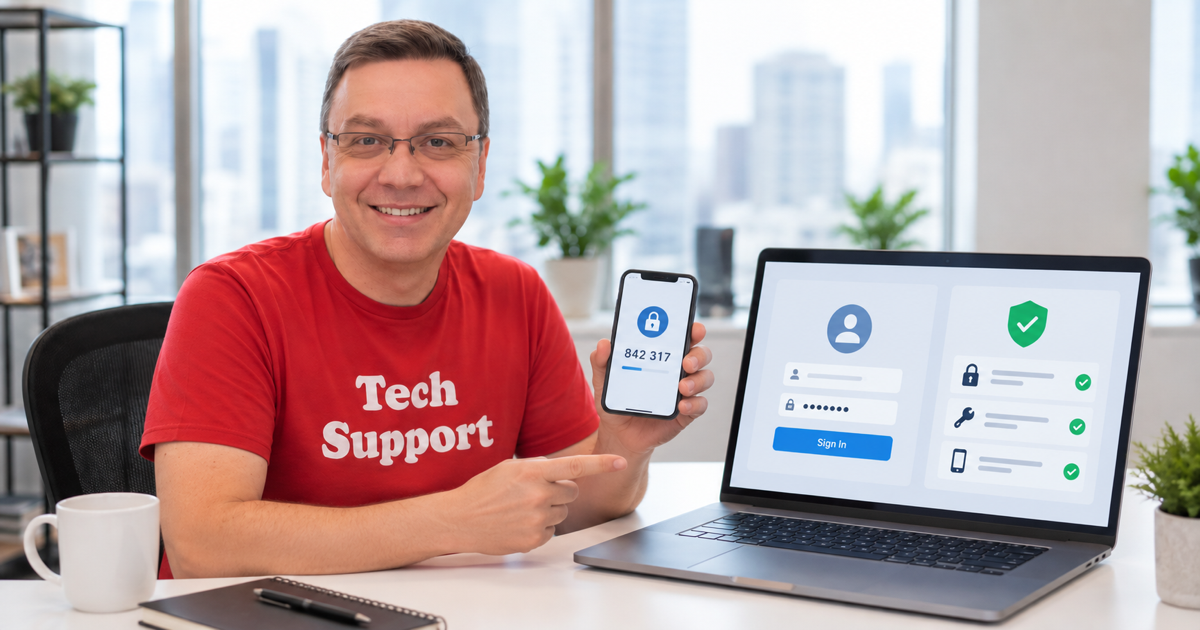
Two-step verification means signing in requires your password plus a second proof that it is really you. That second step is what blocks most attackers who only have a stolen or guessed password.
Does this affect you?
Use this for any account that offers two-step verification, two-factor authentication, 2FA, or multi-factor authentication, including email, banking, social media, shopping, and work accounts.
How it works
The exact screens differ, but the login pattern is the same.
- You enter your username and password.
- The service asks for a second proof before finishing sign-in.
- That proof might be a text-message code, push notification, authenticator app code, or physical security key.
- You enter the code, approve the prompt, or tap the key.
- Some services let you trust a personal device so you are not asked every single time.
The important part is that a leaked password by itself is not enough. An attacker also needs the second factor.
How to turn it on
Start with your most important accounts.
- Open the account’s Security, Login & Security, or Password and security settings.
- Find Two-Step Verification, Two-Factor Authentication, or Multi-Factor Authentication.
- Choose a method. An authenticator app is usually more reliable than SMS, and a physical security key is strongest when supported.
- For an authenticator app, scan the QR code and enter the generated code to confirm setup.
- Save the backup codes in a password manager or printed record.
- Repeat first for email, banking, and any account that receives password resets for other services.
More control
Add more than one method
If SMS to one phone is your only second factor, losing that phone can lock you out. Add backup codes, an authenticator app, or another recovery method.
Authenticator apps work offline
Google Authenticator, Microsoft Authenticator, Authy, and similar apps generate codes on the device. Once configured, they do not need cell service or Wi-Fi.
Security keys resist phishing
A physical security key does not give you a code to type into a fake page. You tap or plug it in, and it only responds to the real service.
Backup codes prevent panic
The most common serious lockout is losing the phone with no backup. Save backup codes the same day you enable 2FA.
Sources
- Google Account Help – Turn on 2-Step Verification (2025)
- Microsoft Support – Two-step verification: what is it and how does it work (2025)
- CISA – Multi-Factor Authentication (2025)