

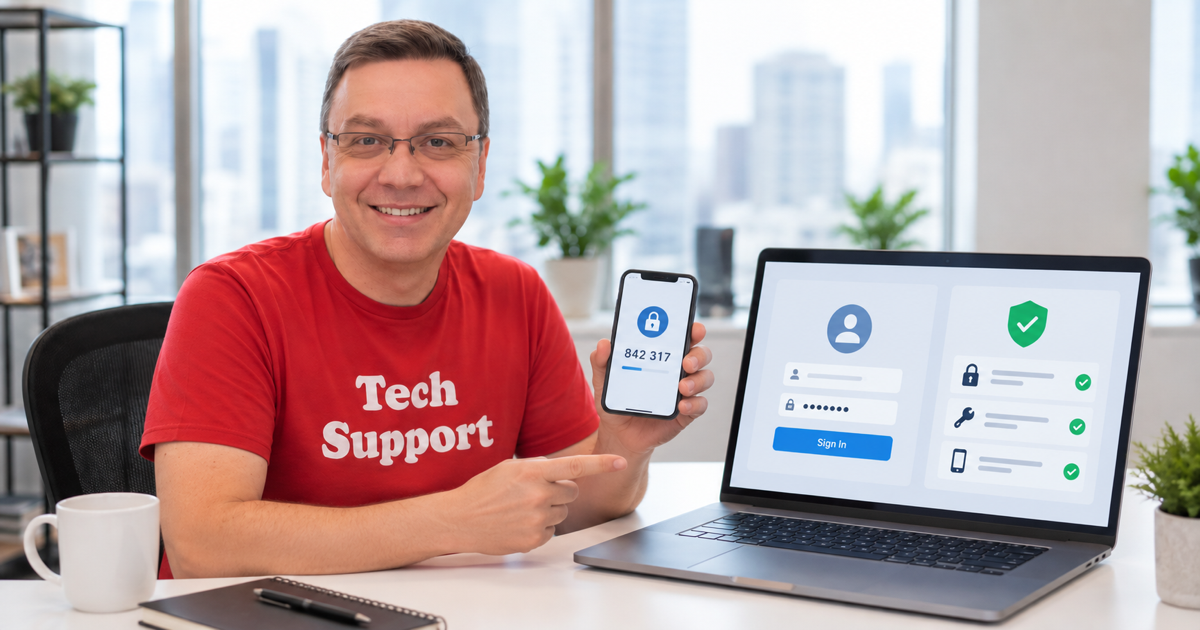
If LinkedIn simply rejects the password and there is no hacked-account or restriction warning, use the normal reset flow. LinkedIn sends a verification code to the email or phone tied to the account.
Does this affect you?
Use this for LinkedIn on the web, iPhone, or Android, including free and Premium accounts.
Reset your password with email or phone
This takes only a few minutes when your recovery details are current.
- Open the LinkedIn sign-in page.
- Choose Forgot password.
- Enter the email address or phone number associated with your account.
- Choose email, text, or phone call for the code if LinkedIn offers options.
- Enter the code before it expires.
- Create and confirm a new password.
- Sign in and update your saved password.
You no longer control the recovery contact
Use LinkedIn’s account recovery path when the code cannot reach you.
- From the sign-in or reset page, look for Having trouble signing in or a similar recovery link.
- Provide an alternate email address where LinkedIn can contact you.
- Complete any identity verification LinkedIn requests.
- Wait for LinkedIn’s review before trying repeated resets.
More control
Changing a known password is simpler
If you are already signed in and only want a new password, open Settings & Privacy > Sign in & security > Change password. Enter the old password once and the new one twice.
Use a unique password
LinkedIn contains work history, contacts, messages, and identity details. Use a password manager to create a password you do not reuse elsewhere.
Turn on two-step verification
After recovery, enable two-step verification under Sign in & security. If you also see messages or profile changes you did not make, review active sessions and treat the account as compromised.
Sources
- LinkedIn Help – Reset your password (2025)
- LinkedIn Help – Change your password (2025)
- LinkedIn Help – No access to email address (2025)