

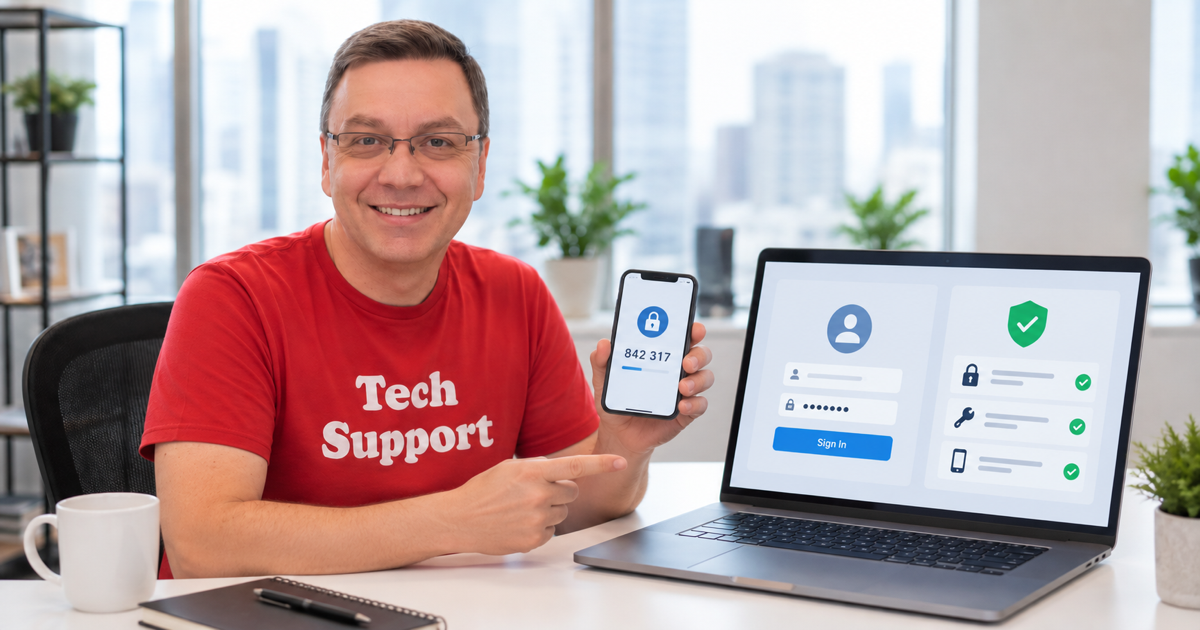
Two-factor authentication adds a code requirement after your Dropbox password. It helps keep files safe even if the password leaks or is guessed.
Does this affect you?
Use this for Dropbox personal and Dropbox Business accounts. Two-factor authentication must be enabled from dropbox.com, not the desktop or mobile app.
Turn on two-factor authentication
Use a browser for setup.
- Sign in at dropbox.com.
- Click your avatar and choose Settings.
- Open the Security tab.
- Find Two-step verification and turn it on.
- Choose text message or an authenticator app. An authenticator app is more reliable when traveling because it does not need cell service.
- If using an authenticator app, scan Dropbox’s QR code and enter the six-digit code generated by the app.
- Save the one-time backup codes Dropbox shows. Store them outside Dropbox, such as in a password manager or printed copy.
More control
Use backup codes when codes fail
On the Dropbox sign-in screen, choose the backup-code option and enter one saved code. Each backup code works once.
Lost 2FA takes longer
If you lose the phone and have no backup codes, contact Dropbox support and search for lost two-factor authentication. Recovery may require billing information, account details, or other proof of ownership.
Switch from SMS to an authenticator app
Open Settings > Security and change the two-step verification method. You do not need to turn protection off and back on just to switch methods.
Sources
- Dropbox Help – Turn two-factor authentication on and off (2025)
- Dropbox Help – Troubleshoot two-factor authentication issues (2025)
- Dropbox Help – What is two-factor authentication? (2025)