

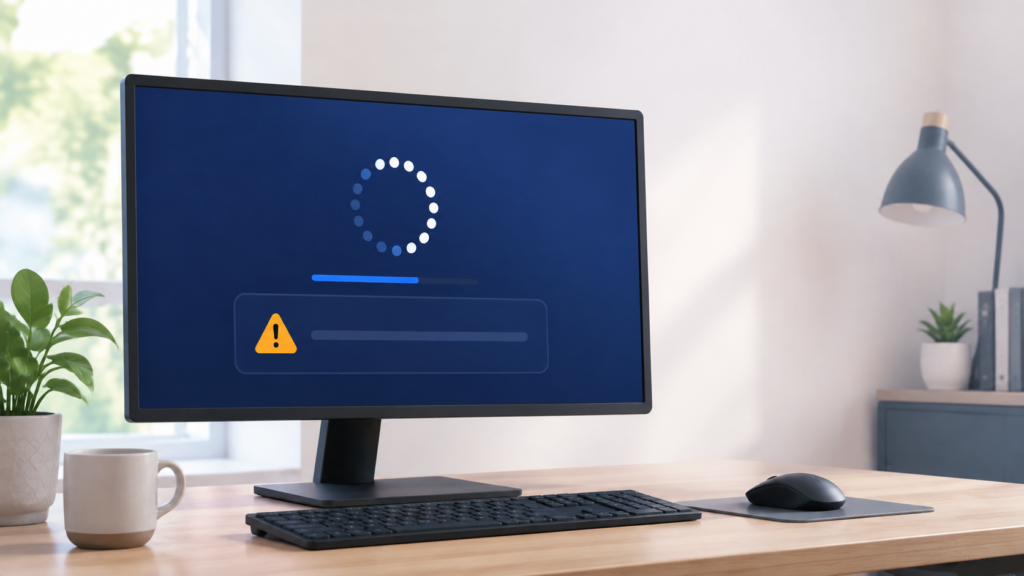

If your PC restarts and shows “We couldn’t complete the updates. Undoing changes. Don’t turn off your computer”, Windows tried to install an update, hit a problem, and is now rolling the system back to the previous working state.
This guide applies to Windows 10 and Windows 11 computers that show the message during a restart, right after installing updates, or after a failed Windows Update attempt.
First, Make Sure This Is Your Situation
You are in the right place if the computer is stuck on an update rollback screen, usually with wording such as “undoing changes” or “don’t turn off your computer.” In most cases, Windows is not permanently broken. It is undoing the update files and settings that did not install correctly.
The important part is timing. A rollback can look frozen even when it is still working in the background. Older hard drives, large feature updates, and slow systems can make this screen sit for a long time with very little visible progress.
Caution: Do not unplug the PC or force it off while the rollback still appears active. Interrupting Windows while it is undoing update changes can create a bigger boot problem than the failed update itself.
Method A: Wait Long Enough Before You Intervene
The safest first fix is patience. Many computers recover from this message without any repair steps at all.
- Leave the computer plugged into power. If it is a laptop, connect the charger.
- Do not press the power button while the screen is changing, the dots are spinning, or the percentage is moving.
- Watch for signs of activity: a progress percentage, spinning dots, a brief black screen, disk light activity, or the screen refreshing.
- Give the process at least 1 to 2 hours, especially on an older computer with a mechanical hard drive.
- If Windows completes the rollback, it should restart and return to the desktop or sign-in screen. You may then see a message that the update failed to install.
If the screen is still changing in any way, keep waiting. Slow is different from stuck.
Method B: Force Restart Only If Nothing Changes for Hours
Use this method only when the computer shows no movement for several hours: no spinning dots, no percentage change, no screen flicker, and no disk activity. A forced shutdown should be the fallback, not the first step.
- Hold the physical power button for about 10 seconds until the computer turns off.
- Wait 10 to 20 seconds.
- Press the power button again to start the PC.
- If Windows starts normally, sign in and continue with Method C before trying the update again.
- If Windows opens Automatic Repair, choose Troubleshoot, then Advanced options, then Startup Repair.
If Startup Repair cannot fix the problem, return to Advanced options and consider Uninstall Updates. Start with the latest quality update if that option is available.
Method C: Repair Windows Before Running Update Again
Once you are back on the desktop, repair Windows system files before you retry the update. This helps if the update failed because of corrupted files or a damaged component store.
- Open the Start menu and type cmd.
- Right-click Command Prompt and choose Run as administrator.
- Run this command and wait for it to finish:
sfc /scannow - After SFC finishes, run this command:
DISM /Online /Cleanup-Image /RestoreHealth - Restart the computer.
- Go to Settings > Windows Update and check for updates again.
The SFC command checks protected Windows files and replaces damaged ones when possible. DISM repairs the Windows image that update components depend on. Run both before retrying the same update.
Reduce the Chance It Happens Again
Free Up Disk Space
Windows Update needs room to download, unpack, install, and roll back files if something goes wrong. For a large feature update, aim for at least 20 GB of free space. Open Settings > System > Storage to check available space.
Disconnect Extra USB Devices
Before running a major update, unplug hardware you do not need during installation. External drives, docks, card readers, printers, and unusual USB devices can sometimes interfere with setup. Keep only the keyboard, mouse, monitor, power cable, and internet connection attached.
Try the Manual Update Installer
If the same update keeps failing, open Settings > Windows Update > Update history and look for the KB number. Search that KB number on the Microsoft Update Catalog and download the matching standalone installer for your version of Windows.
Pause and Retry Later
If many people are reporting trouble with the same update, pausing updates for a short time may be smarter than forcing repeated installs. In Windows Update settings, you can pause updates temporarily, restart the computer, and try again after Microsoft or the hardware vendor releases a fix.
When to Get More Help
Get help from a repair technician or your device manufacturer if the PC repeatedly returns to the same rollback screen, cannot reach the desktop, or fails Startup Repair. Also stop troubleshooting and back up important files first if Windows starts but the drive sounds unusual, the PC shuts off randomly, or you see repeated blue screen errors.
Sources
- Microsoft Support: Fix Windows Update errors
- Microsoft Support: Windows Update FAQ
- Microsoft Learn: Troubleshoot Windows Update installation failures